That's the problem document scanning and filing software solves. Instead of manually sorting, labeling, and re-filing paper, these tools scan documents, run OCR to make them searchable, and automatically route them into organized digital folders. No more hunting through cabinets for a single invoice.
This guide compares the top scanning and filing tools of 2026 for individuals, small businesses, and large organizations, including affordable one-time-purchase options like FileCenter.
TL;DR
- Best overall value (scanning, filing, OCR, and PDF editing): FileCenter
- Top OCR accuracy across languages: ABBYY FineReader
- Leading mobile scanning app: Adobe Scan
- Standout free, open-source desktop scanner: NAPS2
- Strongest AI-powered enterprise document processing: Nanonets
Overview of Document Scanning and Filing Software in 2026
Many businesses struggle with paper-based filing that slows down daily work.
Document scanning and filing software digitizes paper into searchable, organized files. It uses OCR to convert scanned images into machine-readable text, then applies automated naming and routing so files land in the right digital folder without anyone touching a keyboard.
Demand for this technology keeps climbing. According to Gartner's intelligent document processing forecast, the market will hit $2.09 billion by 2026, growing at a 13% compound annual rate from 2021 through 2026.
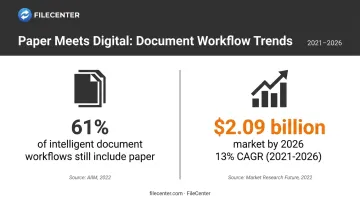
That growth reflects a simple reality: businesses are tired of paper slowing them down.
Below, we break down the top-rated tools for individuals, small businesses, and enterprise teams, covering what each one does best and where it falls short.
Top Document Scanning and Filing Software in 2026
We evaluated each tool on five factors: OCR accuracy, pricing model, filing and automation capabilities, platform compatibility, and security. Here's how they stack up.
FileCenter
FileCenter is a Windows-based document management solution built for scanning, OCR, PDF editing, and automatic filing. It's designed for people who want enterprise-grade capability without the enterprise price tag.
What sets it apart:
- One-time purchase pricing across three editions, no subscriptions ever
- Dual OCR engines (ReadIris and Tesseract) for flexible text recognition
- Zonal OCR with automatic file naming, so scanned documents get named and filed without manual input
- Network sharing for teams, with centralized settings deployment in the Pro Plus edition
- 30-day money-back guarantee on every edition
| Category | Details |
|---|---|
| Pricing | Standard $97, Pro $197, Pro Plus $297 (one-time). New users get 25% off (up to $74) |
| Key Features | OCR, automatic document routing/separation, PDF editing, Bates stamping, barcode support |
| Best For | Small businesses, legal/accounting/healthcare firms, and teams needing an affordable alternative to enterprise DMS platforms |
Because FileCenter stores files in standard Windows folders instead of a proprietary database, it also plays nicely with Google Drive, OneDrive, and Dropbox. That's a small detail, but it matters if you're already syncing files across devices.
One tradeoff worth knowing: it's Windows-only, so Mac and Linux users will need to look elsewhere.
ABBYY FineReader
ABBYY FineReader PDF has long been the benchmark for desktop OCR conversion, particularly for organizations juggling multilingual documents.
Why it stands out:
- Recognizes text in 198 languages, per ABBYY's current product page
- Includes document comparison tools useful for legal redlining and contract review
- Supports batch processing and hot folders for automated conversion workflows
| Category | Details |
|---|---|
| Pricing | Standard $99/year (or $16/month); Corporate $165/year (or $24/month) |
| Key Features | High-accuracy OCR, PDF editing, format conversion, version comparison |
| Best For | Legal, financial, and multilingual organizations needing highly accurate multilingual OCR |
The tradeoff is the subscription model. You're paying every year to keep using it, which adds up fast for multi-user teams.
Adobe Scan
Adobe Scan is a free mobile app for iOS and Android that turns your phone into a portable scanner, complete with automatic edge detection and OCR.
What makes it useful:
- AI-based edge detection automatically identifies document boundaries as you capture
- Built-in OCR converts images to searchable text on the spot
- Scans sync automatically to Adobe's cloud storage across devices
| Category | Details |
|---|---|
| Pricing | Free (includes 5GB cloud storage); premium features unlock via Acrobat Pro at $19.99/month |
| Key Features | Mobile scanning, OCR, multi-page capture, cloud sync |
| Best For | Professionals already using Adobe products who need scanning on the go |
It's a solid companion app, but it's not built for high-volume filing or automated routing. Think quick captures, not document management.
NAPS2
NAPS2 (Not Another PDF Scanner) is a free, open-source desktop scanning tool for Windows. It's a favorite among budget-conscious users who just need reliable scanning without the frills.
Standout features:
- Zero cost, licensed under GPL-2.0
- Tesseract-powered OCR built in
- A portable USB version for scanning on the go without installation
- Command-line scripting for IT teams automating batch jobs
| Category | Details |
|---|---|
| Pricing | Free, open-source |
| Key Features | Batch scanning, multiple export formats (PDF, TIFF, JPEG, PNG), command-line automation |
| Best For | Budget-conscious individuals and small offices with basic scanning needs |
NAPS2 handles the basics well. It won't automatically route or rename files based on content, so it's more of a scanning tool than a full filing system.
Nanonets
Nanonets takes a different approach entirely. It's an AI-driven platform built to extract structured data from high-volume document flows, like invoices, purchase orders, and forms, rather than just digitizing individual paper files.
Why enterprises use it:
- Custom-trained extraction models adapt to specific document layouts
- ERP and CRM integrations push extracted data directly into existing systems
- Human-in-the-loop validation catches low-confidence extractions before they cause errors
| Category | Details |
|---|---|
| Pricing | $50 in starting credits, then $100/month for 100 credits; custom Enterprise pricing available |
| Key Features | AI data extraction, workflow automation, audit trails |
| Best For | Enterprises automating high-volume invoice and form processing |
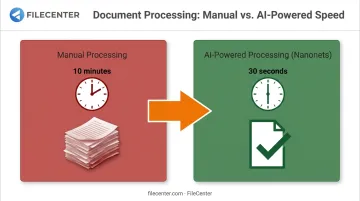
One published case study cites a pharmaceutical company cutting purchase-order processing from 10 minutes to 30 seconds per document. Results like that vary by document type and volume, but the direction is clear: this tool is built for scale, not single-user filing.
How We Chose the Best Document Scanning and Filing Software
The most common mistake buyers make is picking software based on brand recognition alone, then discovering it doesn't match their actual document volume or budget. A freelancer scanning receipts doesn't need the same tool as a law firm processing thousands of case files monthly.
We weighed each product against five core factors:
- OCR accuracy — how reliably the software converts scanned text into searchable, editable content
- Filing and automation capabilities — whether the tool can auto-name, route, and organize files without manual intervention
- Platform compatibility — Windows, mobile, or cloud-based, and how that fits existing infrastructure
- Security and compliance — relevant for regulated industries like legal, healthcare, and finance
- Total cost of ownership — subscription fees add up over years; one-time purchases don't
Conclusion
There's no single "best" scanning and filing software for everyone. The right pick depends on your document volume, your budget, and whether a recurring subscription or a one-time purchase fits your organization's long-term goals.
Before committing, test how each tool scales. A solution that works fine for five users might buckle at fifty, and a subscription that seems cheap monthly can cost far more than a one-time license over three years.
If you're weighing costs, FileCenter's 30-day money-back guarantee and no-subscription pricing make it a low-risk option. You get scanning, OCR, and filing capability that typically comes bundled only with pricier enterprise document management systems.
Frequently Asked Questions
What is the best scanning and filing software?
It depends on your needs. FileCenter offers the best all-in-one value with scanning, OCR, and filing at a one-time price. ABBYY leads on OCR accuracy, and Adobe Scan is best for quick mobile captures.
When scanning a document, what is the best file type?
Searchable PDF works for most everyday use since it preserves the page image while adding a text layer for search and editing. For long-term archival records, TIFF or PDF/A formats meet stricter preservation standards.
What is the best way to scan a lot of documents?
Use a scanner with an automatic document feeder paired with software that supports batch scanning. Zonal OCR with auto-naming, like FileCenter offers, saves significant time when filing hundreds of documents.
What is document filing software?
Filing software goes beyond basic scanning. It organizes, names, and routes digitized documents into a structured system so you can retrieve them instantly, rather than just producing static image files.
Is OCR necessary for scanned documents?
Yes, for most practical purposes. Without OCR, a scan is just an image, meaning you can't search, select, or copy text from it. OCR adds a text layer that makes documents searchable and editable.
How much does document scanning software typically cost?
Costs range from free tools like NAPS2 to enterprise platforms with custom contact-based pricing. FileCenter's one-time cost model ($97 to $297) offers a budget-friendly middle ground compared to ongoing subscriptions.