Microsoft ended official Windows 10 support on October 14, 2025, meaning no more security patches or feature updates. That doesn't stop the OS from running. It does mean businesses relying on paper-heavy workflows need OCR tools that work independently of Windows updates.
Manual retyping of scanned pages wastes hours every week. Windows 10's built-in tools help with quick text grabs, but they weren't built for business-grade document volume.
This guide compares free, built-in, and premium OCR software for Windows 10, including options designed specifically for document-heavy professionals.
TL;DR
- OCR software turns scans, PDFs, and screenshots into searchable, editable text, cutting manual data entry
- OneNote and PowerToys provide basic OCR, but lack batch processing and business-grade accuracy
- Free tools like PowerToys and Tesseract rival platforms like FileCenter, which pairs OCR with document management
- The right choice depends on document volume, accuracy needs, budget, and automation requirements
Overview of OCR Software for Windows 10 in 2026
OCR software reads text embedded in images, scans, and PDFs, then converts it into a format you can search, copy, or edit. For Windows 10 users still running legacy filing systems, that's the difference between digging through file cabinets and typing a keyword into a search bar.
The category isn't shrinking. Grand View Research values the global OCR market at $10.62 billion in 2022, projecting growth to $32.90 billion by 2030, a 14.8% compound annual growth rate. That growth reflects a simple reality: businesses are digitizing faster than ever, and manual data entry is losing ground.
Windows 10 users face a fork in the road. Free tools handle occasional, low-volume text extraction well enough. But if you're processing dozens or hundreds of documents weekly, the calculation changes fast.
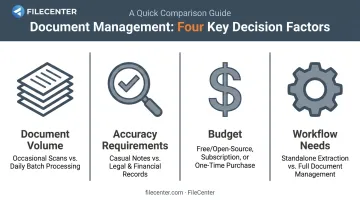
Key factors to weigh:
- Document volume: occasional screenshots versus daily batch scanning
- Accuracy requirements: casual notes versus legal or financial records
- Budget: free/open-source versus one-time purchase versus subscription
- Workflow needs: standalone text extraction versus full document management
Best OCR Software for Windows 10 in 2026
This list spans free built-in tools, open-source engines, and premium business-grade software, selected for accuracy, ease of use, and overall value.
Windows Snipping Tool & PowerToys Text Extractor (Built-in, Free)
These are Microsoft's native tools for grabbing text straight off your screen, no installation required beyond enabling PowerToys.
PowerToys Text Extractor lets you drag over any screen region, images and video included, and copies the recognized text to your clipboard using the shortcut Win+Shift+T. Microsoft's own documentation notes the text "may not be perfect" and recommends proofreading results. It works one region at a time, with no file import or batch option.
Snipping Tool offers a similar Text Actions button after you capture a snip.
Quick specs:
- Pricing: Free (built into Windows/PowerToys)
- Key Features: Screen-region text capture, language pack support, no file processing
- Best For: Quick one-off text grabs, not full documents
Microsoft OneNote OCR
OneNote's Copy Text from Picture feature extracts text from images pasted directly into your notes. There's also a printout-specific version that pulls text from one page or an entire multi-page file printout at once.
This works well if you're already living inside the Microsoft ecosystem. The catch: Microsoft notes that results can take up to 24-48 hours for complex or lengthy images, and there's no batch-folder processing for external files.
Quick specs:
- Pricing: Free with Microsoft account
- Key Features: Image OCR, multi-page printout extraction, OneDrive sync
- Best For: Casual, occasional text extraction from photos and printouts
Tesseract OCR (Open Source)
Tesseract is the open-source engine powering a huge chunk of the commercial OCR market. Unlike consumer-facing OCR apps, it's a command-line tool and API that developers build on top of.
Officially, Tesseract recognizes more than 100 languages "out of the box," with installation packages covering over 130 languages and 35 scripts. It's genuinely accurate, but you'll need comfort with scripting or a technical teammate to set it up for regular use.
Quick specs:
- Pricing: Free (Apache 2.0 license)
- Key Features: 100+ language packs, scriptable batch processing
- Best For: Developers building custom OCR workflows
NAPS2 (Not Another PDF Scanner 2)
NAPS2 pairs scanner integration with Tesseract's OCR engine to produce searchable PDFs, without requiring a single line of code.
It handles batch scanning through multiple prompts, timed delays, or document separators, and it's smart enough to skip pages that already contain text. For small offices trying to digitize a filing cabinet's worth of paper on a weekend, it's a solid, no-cost starting point.
Quick specs:
- Pricing: Free and open-source
- Key Features: Scanner integration, batch scanning, searchable PDF export
- Best For: Small offices digitizing paper archives on a budget
FileCenter (Best Value for Document-Heavy Businesses)
FileCenter takes a different approach: instead of OCR as a standalone feature, it's built into a full document management platform, letting you scan, recognize, name, and file documents in one motion.
The Pro Plus edition adds both ReadIris and Tesseract OCR engines, giving you flexibility between premium recognition accuracy and the open-source standard. Zonal OCR lets you extract text from specific regions of a document, useful for auto-naming files based on invoice numbers or client names rather than manually typing every filename.
Because FileCenter stores files in standard Windows folders instead of a proprietary database, OCR'd documents sync automatically through Google Drive, OneDrive, Dropbox, or SharePoint, without extra setup.
"Performs like expensive complex products," according to attorney customer feedback, at a fraction of typical enterprise pricing.
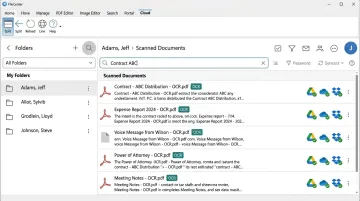
This makes it a natural fit for legal, accounting, healthcare, and real estate teams that need OCR plus document routing and network-wide file access, not just text extraction.
Quick specs:
- Pricing: One-time purchase — Standard $97, Pro $197, Pro Plus $297 (25% off first license, up to $74 in savings)
- Key Features: Zonal OCR, ReadIris & Tesseract engines, automatic document routing, network sharing, PDF editing
- Best For: Small-to-mid businesses and document-heavy industries wanting OCR plus full document management
ABBYY FineReader PDF
FineReader has a reputation for handling messy layouts well. Tables, columns, and multi-language documents come out looking closer to the original than most competitors manage.
ABBYY's current US pricing runs Standard at $16/month, $99/year, or $267 for three years, with Corporate tiers priced higher and adding automated Hot Folder processing for up to 5,000 pages monthly. Language support sits somewhere north of 190, though ABBYY's own pages cite slightly different figures (198 versus 201) depending on which document you check.
Quick specs:
- Pricing: Subscription-based, roughly $16–$99+ depending on plan and term
- Key Features: Batch OCR, PDF editing/comparison, 190+ language support
- Best For: Legal, academic, and admin teams processing large document volumes
Adobe Acrobat Pro DC
Acrobat's Scan & OCR tool recognizes text across multiple PDF files at once, letting you set an output folder and filename rules. It's a strong choice if your team already lives inside Adobe's PDF ecosystem for e-signatures and form creation.
OCR functions as a supporting feature within Acrobat's broader PDF toolkit. Acrobat Standard runs $14.99/month, Pro $19.99/month, with business team pricing starting around $23.99/month per license.
Quick specs:
- Pricing: Subscription-based
- Key Features: OCR-based PDF conversion, e-signatures, form creation
- Best For: Businesses already standardized on Adobe's PDF ecosystem
How We Chose the Best OCR Software for Windows 10
We evaluated tools across accuracy, batch handling, language support, and pricing structure, spanning free, open-source, and paid categories. The most common mistake we flagged: picking a tool based purely on price without checking whether it can handle your document volume.
The factors that matter most:
- Accuracy — directly affects how much manual correction you'll do afterward
- Automation depth — batch processing versus one-file-at-a-time extraction
- Workflow integration — how well a tool fits into existing filing and cloud storage habits
- Total cost of ownership — subscription creep versus one-time purchase
These factors tie directly to business outcomes. A tool with weak batch automation costs you in staff hours, even if the software itself was free.
Conclusion
The best OCR software for Windows 10 isn't about finding the most popular or cheapest tool. It's about matching a solution to your specific document volume and workflow complexity.
Always test for scalability before committing. A free option that handles ten documents a month might collapse under the pressure of two hundred.
If manual filing has become a bottleneck, consider a tool built for higher volumes. FileCenter combines professional-grade OCR with full document management, and its 30-day money-back guarantee lets you invest in a permanent solution, risk-free.
Frequently Asked Questions
What is the best free OCR software for Windows 10?
PowerToys Text Extractor, OneNote, and Tesseract are the top free options. PowerToys and OneNote handle quick, casual extraction, while Tesseract offers stronger accuracy for those comfortable with command-line setup.
Does Windows 10 have built-in OCR?
Windows 10 lacks a system-wide OCR feature, but it supports text extraction through OneNote's picture OCR and Microsoft's PowerToys add-on. Both work well for one-off tasks but skip batch processing entirely.
Is OCR software still worth using with Windows 10 nearing end of support?
Yes. OCR tools run independently of Windows update cycles, so they remain functional regardless of Microsoft's official support status. Compatibility depends on each software vendor, not the OS itself.
Can OCR software accurately read handwritten text?
Modern AI-powered OCR handles handwriting fairly well, though accuracy varies with clarity. A 2023 IEEE benchmark study found top tools scored 95% on printed text but only 89% on handwriting.
What's the difference between free OCR tools and paid software like FileCenter?
Free tools handle basic text extraction one file at a time. Paid platforms like FileCenter add batch OCR, automatic file naming, and document routing across your entire filing system.
How much does professional OCR software typically cost?
Subscription tools like ABBYY and Adobe Acrobat run $15-$25 monthly depending on the plan. FileCenter uses one-time pricing instead, ranging from $97 to $297 with no recurring fees.