Multi-Factor Authentication (MFA/2FA) Setup
All FileCenter desktop products support two-factor/multi-factor authentication. This prevents opening the program without entering a code. To set it up, do the following:
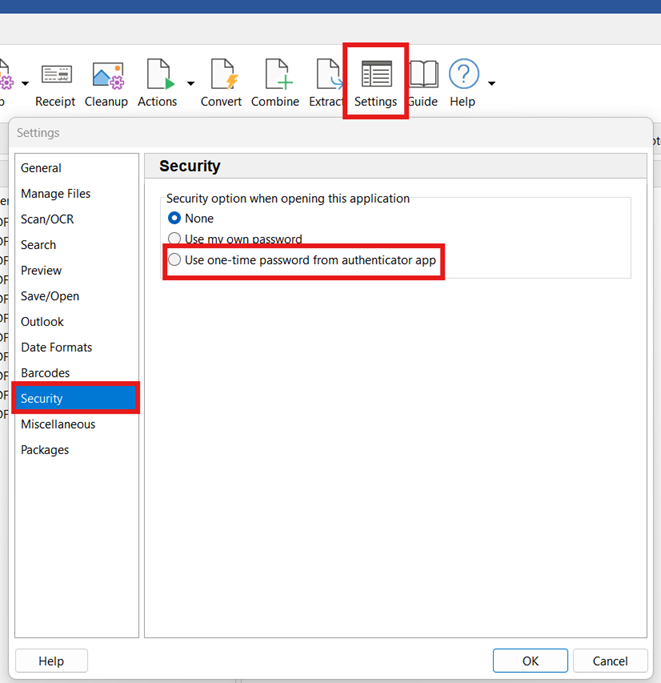
1. Open FileCenter (or Automate or Receipts) and go to Settings
2. Select Security
3. Select "Use one-time password from authenticator app"
4. From there, follow the prompts to set up FileCenter in the authenticator app of your choice, such as:
- Google Authenticator
- Microsoft Authenticator
- Authy

5. Note that FileCenter provides a QR code you can scan with your authenticator app:
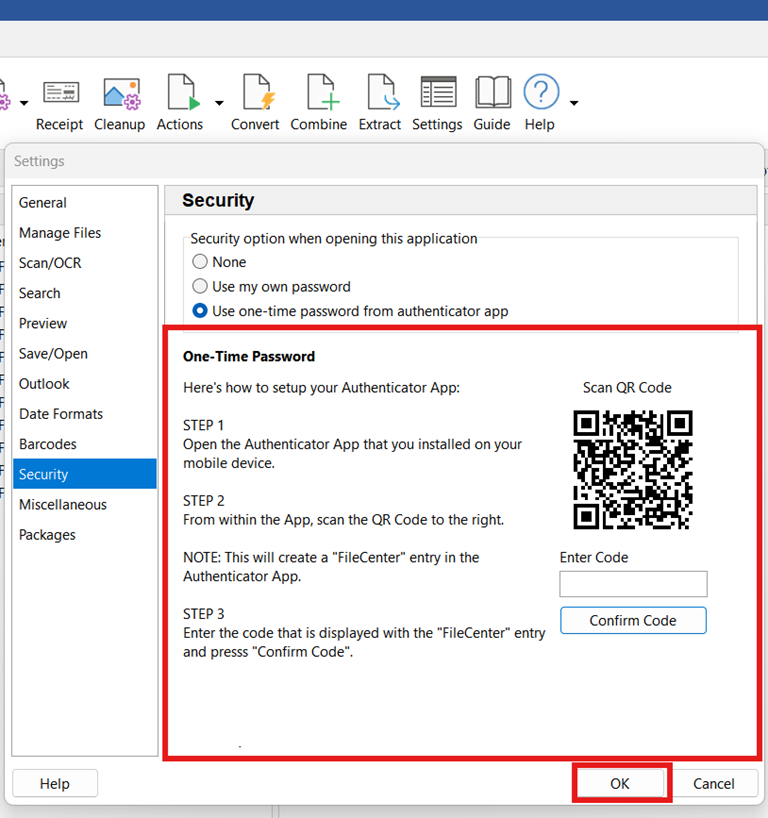
6. Once you've scanned the QR code, your app will provide a different code for you to enter in FileCenter. Type in the code and click Confirm Code.
FileCenter is now paired with your authenticator. Whenever you open FileCenter, it will prompt you for the current code in your authenticator app. Note that this code revolves every 60 seconds, so you will be entering a new code every time.
A better solution starts right here.

Download your free trial and get on the path to better file organization in 2 minutes.
- Fully-operational, 15-day trial
- Windows desktop software
- No credit card required, no strings attached.